Extensions
Three browser extensions for using real Japanese while you study: one for reading any page, one for watching shows and videos with Japanese subtitles, and one for reading the Japanese in images, manga and video. They are free and work on Chrome, Opera, Edge, Brave and Firefox.
WakaruAI Reader
For reading Japanese on any page
While you read Twitter, a web novel or the news, it shows a word's reading and meaning without leaving the page, puts furigana over kanji and saves what you did not know to study later.
How to use it
Connect your account
Open the extension's menu and press “Connect my account”. Without an account it still looks words up, with a limit; with one it adds your progress and the Found section.
Look at a word
Hold Shift with the mouse over a word and its card opens: reading, meaning, JLPT level, the grammar of that sentence, an example and where you stand with it in your reviews. It knows conjugated forms: over 取り扱った it shows 取り扱う.
Look up a phrase
For more than one word, select the text and press the わ button that appears next to it.
Save what you did not know
From the card, “Save” sends the word to Found with the sentence and the page you saw it on. Later, on the site, you choose which ones go to your lessons.
Turn on furigana
From the menu you turn furigana on for the page: over every kanji or only the ones you have not mastered yet.
Shortcuts
- Shiftwith the mouse over a word: opens its card
- Alt+Shift+Fshows or hides the page's furigana
- Esccloses the card
Good to know
- The first lookup takes a second or two longer: the extension loads its dictionary to split words.
- The audio button uses your system's Japanese voice; if none is installed, it does not show.
- If furigana breaks a page's layout, turn it off there with the shortcut.
WakaruAI Subs
Japanese subtitles over the video
On YouTube, Netflix and Crunchyroll it shows three lines over the video: what is said in Japanese, how it reads and the translation. The Japanese is always the original text, never a machine translation.
東京へ行きました
toukyou e ikimashita
I went to Tokyo
Japanese (with furigana if you like) · Romaji · Translation
How to use it
Open a video
On YouTube, Netflix or Crunchyroll. The lines appear over the video by themselves when there are Japanese subtitles.
Choose which lines to see
In the extension's menu, “Subtitles” tab: Japanese, furigana, romaji and translation turn on and off separately. You can also keep the translation hidden until you hover, to try understanding first.
On Crunchyroll, add your jimaku key
Crunchyroll offers no Japanese subtitles. The extension looks for them on jimaku.cc, which needs a free key (how to get it is below). Set the player's own subtitles to “Off” so you do not see them twice.
If they drift, sync them
Subtitles from jimaku come from another edit of the episode and sometimes do not line up. The extension aligns them with the platform's track by itself; if they still drift, use the shortcuts below.
Or use your own file
Drag an .srt, .ass or .vtt onto the video and it is used. It takes priority over everything else.
Where the subtitles come from
| Site | Japanese | Translation |
|---|---|---|
| YouTube | The video's Japanese subtitles, manual or automatic | The video's own, or YouTube's translation |
| Netflix | Netflix's Japanese track; if the title has none, jimaku.cc | Netflix's Spanish or English track |
| Crunchyroll | It has no Japanese: they are fetched from jimaku.cc | Crunchyroll's Spanish or English track |
How to get the jimaku key
jimaku.cc is an archive of Japanese subtitles for anime, made by its community. It is a separate site, not part of WakaruAI. The key is free and you get it once.
Create an account
Go to jimaku.cc and sign up. It is free.
Generate the key
Signed in, open your account page and generate an API key. Copy it.
Paste it into the extension
Open the WakaruAI Subs menu, “Source” tab, and paste it into the “API key” field. It is stored only in your browser.
Open an episode
The extension finds the series and the episode, picks the best file and shows it. The status line of the menu says what it loaded.
jimaku limits how many requests each key can make. If you see “too many requests”, wait a minute and carry on.
Go to jimaku.cc ↗Shortcuts
- Asyncs automatically
- Shift+Apress it just as someone starts speaking: aligns with that line
- Zmoves the Japanese 0.2 s earlier (with Shift, 1 s)
- Xmoves it 0.2 s later (with Shift, 1 s)
Good to know
- The offset you set is remembered per series.
- If it picked the wrong series or file, change it in the menu's “Source” tab; that is remembered too.
- “Translate with Google” is off by default. It helps when a video has no subtitles in your language.
WakaruAI Lens
For reading Japanese in images, manga and video
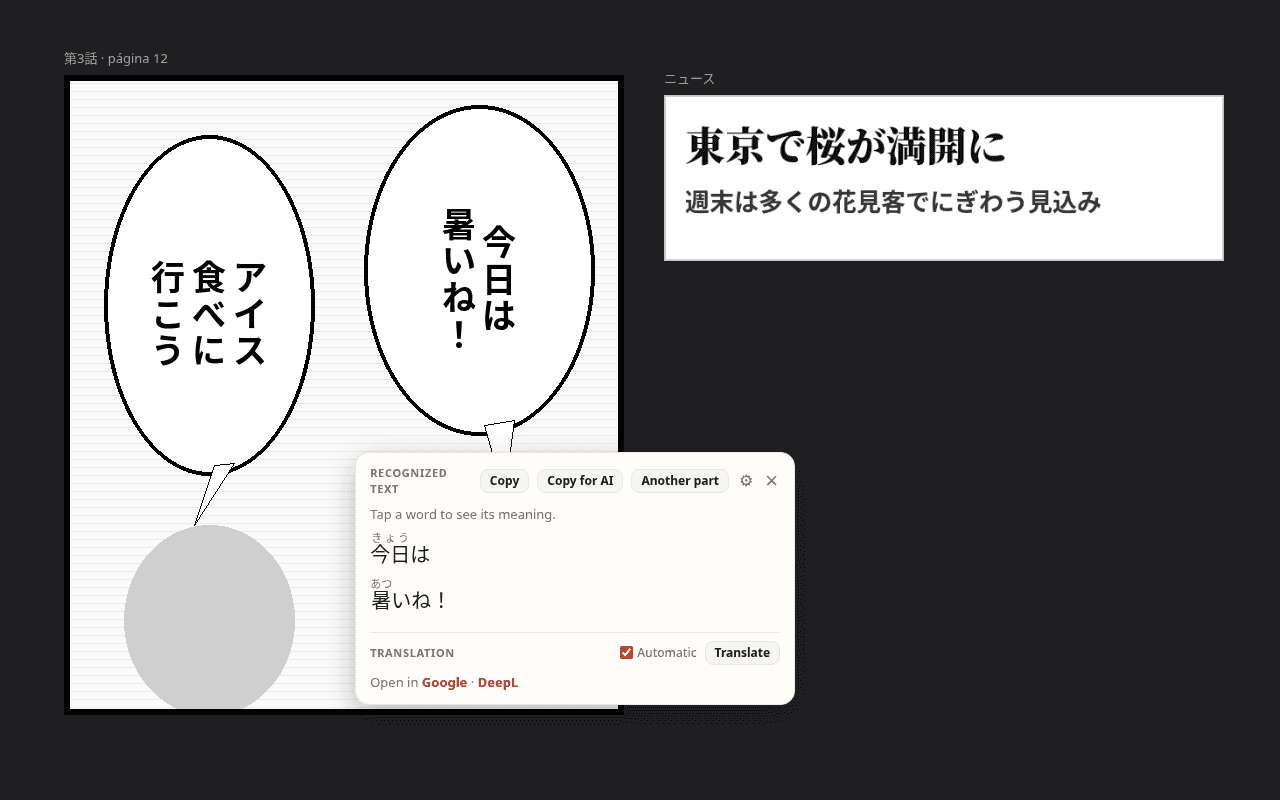
Pick a box on the screen and it reads the Japanese in it, even when it is an image: a manga page, a video frame, a game screenshot. It shows the text with furigana, a translation and, when you tap a word, its meaning. The image is read in your browser and is not sent anywhere.
How to use it
Choose what to read
Click the extension's button and «Read a part», or use the shortcut. The page freezes: drag a box over the Japanese text.
Read the text
A panel shows the recognized text with furigana. It reads vertical text too, like manga speech bubbles.
Tap a word
The same card as in Reader opens: reading, meaning and JLPT level. No account needed.
Translate or copy
The translation goes below (automatic in Chrome, or with Google and DeepL). «Copy for AI» copies the text with a prompt to paste into an AI chat so it explains it to you.
Shortcuts
- Alt+Zstarts picking a box
- Escleaves the selection (right-click too)
Good to know
- The first read takes a few seconds: the extension loads its recognition model.
- Reading works offline; only the words you tap are looked up on wakaruai.com.
- It is separate from Reader: you can have both installed.
What each extension sends and what it does not: Privacy policy